Logitech MX Master 4 after 6 months — the mouse that knows which workspace I'm in
I've been daily-driving the MX Master 4 (launched Sept 2025) since November. 6 months in — 3 things Logitech got right (Actions Ring, haptic feedback, USB-C at last) and 2 they still got wrong. Review for devs writing code 8 hours a day, not a 10-minute unbox.
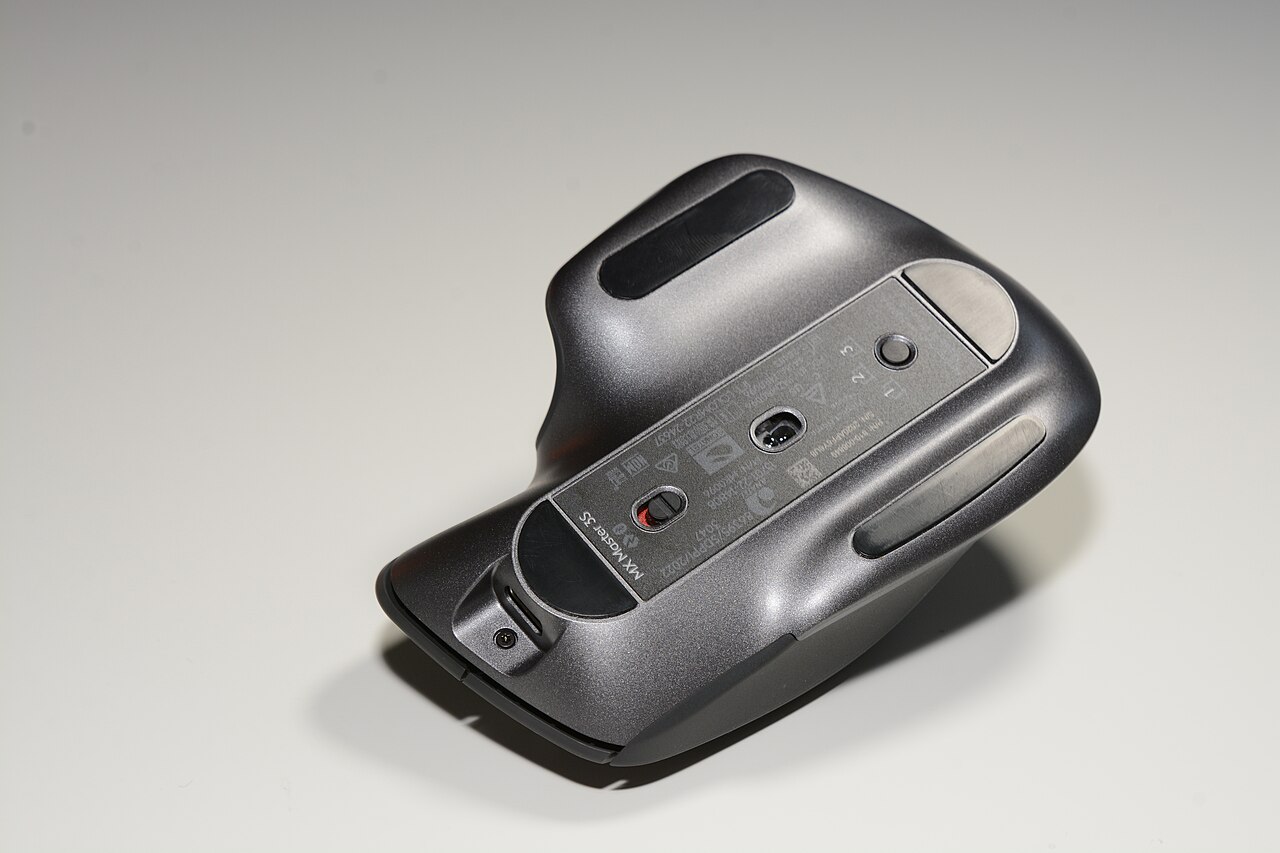
I’ve used the MX Master line since the MX Master 2 (2017). 3, 3S, and now MX Master 4 (Logitech, September 2025 launch). 8 years — this is the only mouse that’s survived multiple machines on my desk.
I bought the MX Master 4 in early November 2025 and have used it as a daily driver every day since. 6 months. 8-10 hours under my palm per day. This is a real review for devs, not a 10-minute unboxing video.
TL;DR
Buy if:
- You’re already in the MX Master line and ready to upgrade
- You use multiple workspaces (work + personal + freelance, or Mac + Windows + Linux)
- Haptic feedback matters to you (I’ll explain why)
Don’t buy if:
- You’re on MX Master 3S and it still works — the delta isn’t worth $120
- You’re a gamer, not a productivity user — Logitech G-series is the right line
- You’re left-handed — still no left-handed version (8 years and counting…)
Hardware in brief
- Darkfield 8000 DPI sensor (same as 3S — no bump here).
- 5 extra buttons + horizontal thumb wheel + MagSpeed vertical wheel.
- USB-C fast charging (finally — Micro-USB held on far too long on MX Master 2/3).
- Bluetooth Low Energy + Logi Bolt receiver (3-device Easy-Switch via the back button).
- 70-day battery claimed — I measured ~50 days under 9-10 hours/day actual use.
- New vs 3S: haptic feedback motor + Actions Ring (per-app shortcut overlay).
3 things Logitech got right
1. Haptic feedback — not a gimmick
This was the feature I was most skeptical about. “Why does a mouse need to vibrate?” Turns out: for a lot.
The MX Master 4 has a small haptic motor. Logi Options+ lets you map vibration to events:
- macOS Space switch / Windows virtual desktop switch → light tick
- Holding the middle/gesture button → firmer tick to confirm
- Smart Action complete (a Logi macro finishes) → 2 quick ticks in a row
Why does it matter? You’re focused on a file in the center of the screen and hit Ctrl+Alt+→ to switch workspaces. The space changes — but you can’t see it instantly (the 200ms animation isn’t done yet). The thumb tick says “yes, you’re on the new workspace now” — you don’t need to look to confirm. Less attention budget spent = smoother coding.
macOS Magic Trackpad has had Force Touch haptic for years. Apple was right. Logitech copied it onto a mouse — and they were right too.
2. Actions Ring — app-aware shortcut overlay
Hold the thumb button → a radial menu appears right at the cursor, with 8 customizable actions specific to the currently-active app.
- In VS Code: Cmd+P (Quick Open), Cmd+Shift+F (Search), Toggle Terminal, Toggle Sidebar, Cmd+B, Cmd+, , Cmd+K Cmd+S, Cmd+Shift+P
- In Chrome: New Tab, Close Tab, Reopen Closed, History, Downloads, Zoom In, Zoom Out, Hard Reload
- In Figma: Frame, Component, Auto Layout, Constraints, Export, Toggle Grid, Toggle Rulers, Page Switcher
I have 8 actions × 5 apps = 40 shortcuts at my thumb. I don’t use all of them — but the ones I do (Quick Open, Hard Reload, Toggle Sidebar) save me ~2 keyboard moves each × 50 times/day = ~100 fewer hand reaches.
This is the feature the MX Master 3S doesn’t have, and it’s the single most worth-it feature, if you invest 30 minutes configuring Options+ properly.
3. USB-C — at last
One lovely small reason: I no longer have to dig out a Micro-USB cable. My entire desk has been USB-C since 2022 — the MX Master 3S was the one device forcing me to keep a Micro-USB hiding in a drawer. The 4 freed me. Small joy, real joy.
The cable in the box is USB-C → USB-C (not USB-C → USB-A like a lot of accessories still ship). Logitech finally figured this out.
2 things Logitech still got wrong
1. Logi Options+ is still the worst desktop app I have installed
Logi Options+ on macOS:
- Restarts after every update → 30-second delay
- Occasionally fails to detect the device — toggle Bluetooth off/on to recover
- Per-app profiles sometimes fail to trigger — switch to VS Code and the mouse still uses the Chrome profile
- Eats 200-400MB RAM resident for software whose only job is mapping mouse buttons
- No config-as-file — I can’t commit my setup to a dotfiles repo and sync across my home and work Macs
Logitech: if you’re reading this — please. Ship a CLI or a YAML config. The community made karabiner-elements for keyboards; surely a hardware giant can do the same for a mouse.
2. Still no left-handed version
The MX Master 4 only ships as a right-handed shape, with an ergonomic curve molded for a right palm. Hold it in your left hand → everything jams against the wrong fingers.
Stat: ~10% of people are left-handed. Logitech still doesn’t serve them at the premium tier. I’ve been mentioning this for 8 years (even though I’m right-handed) — nothing has changed. This is a failure of empathy.
Battery: 50 days measured, not 70
Logitech claims “70 days on a full charge.” I measured under real conditions:
- Fully charged March 10, 2026
- 9-10 hours of use per day, full-time freelance
- Connected via Bluetooth Low Energy (skipped Logi Bolt — a USB-A port is a precious resource)
- Hit 12% on April 28, 2026 → recharged
= ~49 days actual. Less than the claimed 70 but still excellent. A 3-minute USB-C top-up gives you a full work day if you get caught. Zero complaints here.
Vs MX Master 3S — worth the upgrade?
If you’re on 3S and it still feels good (no fade, no battery drop): no. The delta is Actions Ring + Haptic. That’s worth $120 for maybe a 5% workflow improvement if you’re already efficient.
If you’re on MX Master 2 or 3 (not 3S): yes. The 3/3S MagSpeed wheel was the first step-change; the 4 layers a second. Jumping 2/3 → 4 makes the gap very visible.
If you’ve never owned an MX Master and you’re using a $20 Microsoft mouse / a Razer gaming mouse: buy without thinking too hard. I didn’t believe a $120 mouse was worth it until I held one. Ergonomics + thumb wheel + battery life genuinely change how you work with a machine.
Vs Apple Magic Mouse (the cheaper option for macOS-only users)
Magic Mouse: $99, flat surface, great gestures, finally USB-C in the late-2024 refresh (after years of bottom-of-the-mouse Lightning).
Magic Mouse loses on:
- No horizontal thumb wheel → horizontal scroll = 2-finger swipe = finger fatigue
- Flat profile → wrist pain after 4 hours
- Only one configurable extra button (left vs right click)
MX Master 4 loses on:
- No multi-touch gestures (3-finger swipe like Magic Mouse does)
- Taller form factor → harder to slip into a thin sleeve
- Doesn’t integrate deeply into macOS (Mission Control swipe must be manually remapped)
If you’re 100% macOS doing design/typing rather than heavy coding → Magic Mouse. If you code 6+ hours/day across platforms → MX Master 4.
Verdict
The MX Master 4 is the best mouse I’ve used. Not because the hardware is the best — the 3S’s sensor and DPI are already plenty for dev work. It’s the best because the software ecosystem (Options+, flaws and all) lets me map the mouse per workspace, per app, per macro. The Logitech hardware is the vehicle; the real feature is Actions Ring + per-app profiles.
$120 for a 5-year lifespan (anecdotally — my MX Master 2 is still running at my parents’ house 8 years on, with one battery swap) = $24/year = $2/month. For a device you touch more than your keyboard — that pencils out.
Sources
- MX Master 4 product page: logitech.com/products/mice/mx-master-4.
- Logi Options+ download page: logitech.com/software/logi-options-plus.
- Illustration: MX Master 3S, Wikimedia Commons, Logitech MX Master 3S HS13.jpg, CC BY 4.0 (the MX Master line shares form factor — fair visual stand-in).
- Logitech announcement of the MX Master 4: September 2025, Logitech Press Event.
